
How to embed a countdown in your website
If you use content management or blogging software such as Blogger, WordPress, Drupal or similar, you must ensure you are editing your content in HTML mode when you paste the embed code.
Embedding a countdown from CountingDownTo.com is very similar to embedding a video from a website such as YouTube.com.
- Open your countdown. To make a new one, click Website Countdowns in the menu at the top of the page. To find one you made earlier, click the account icon (the person icon) in the top-right corner, then My countdowns.
- Click Embed below the countdown.
- Copy the code that appears below the button. If there is a Copy button next to the code, you can click it instead.
- Paste the code into your website or blog where you want the countdown to appear.
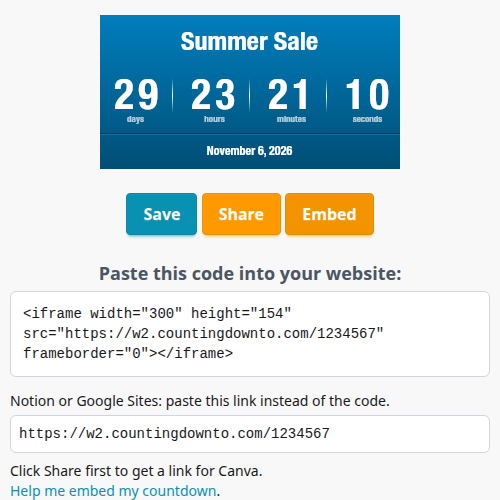
Notion and Google Sites need a link instead of code. The editor shows that link below the code. Canva needs your countdown's share link: in the original editor, click Share first to get it. The new editor shows it below the Notion and Google Sites link.
If you have followed the instructions on this page but are still unable to embed your countdown, please contact us for assistance.
Which platforms can embed a live countdown?
Most sites that let you paste custom HTML or an iframe URL will show your countdown live and ticking. A few page-builder and design tools block iframes entirely. Here's what we've verified by hand. The Canvas and Schoology rows are based on our logs, which show countdowns loading on many course sites on those platforms, and for Canvas on its own guide:
| Platform | Live countdown? | Notes |
|---|---|---|
| WordPress (self-hosted) | Yes | Add a Custom HTML block in the block editor and paste the embed code. |
| WordPress.com | Plan-dependent | Free plans strip iframes. Paid plans need "hosting features" activated before custom HTML works. More info. |
| Squarespace | Yes (Core plan or higher) | Add a Code block and paste the embed code. Requires a Core plan or higher, or a legacy Business or Commerce plan. |
| Wix | Yes | Use Add Elements → Embed Code → Popular Embeds → Embed HTML. Set the iframe width and height to match your countdown so it doesn't clip or show scrollbars. |
| Google Sites | Yes |
Use Insert → Embed. Paste the embed code on the
Embed code
tab, or paste the address from inside src="..."
in your embed code on the By URL
tab. If that address ends in .js, leave off the .js.
|
| Shopify | Yes (with caveat) | Use a theme Custom Liquid section. The product description editor may not keep the embed code on every theme, so use a Custom Liquid section for product pages too. |
| Notion | Yes |
Type /embed
and paste the address from inside src="..."
in your embed code, not the share link. If that address ends in .js, leave off the .js.
|
| Canva | Yes, when viewed online | Add the Embed app and paste your countdown's share link. Downloaded images, PDFs and videos can't show a ticking countdown. |
| Canvas | Yes | In the Rich Content Editor, choose Insert → Embed, paste the embed code and click Submit, then save the page. These steps are from the Canvas instructor guide. |
| Schoology | Yes (steps not tested) | Countdowns show on Schoology sites, but we have not tested the steps ourselves. Paste the embed code in the editor's HTML view. |
| Blogger, Drupal, Weebly, Joomla! | Yes | Paste the embed code as custom/raw HTML — see the platform-specific instructions below. |
| Facebook, WhatsApp, YouTube | No | These platforms don't allow third-party iframe embeds. Share a link to your published countdown page instead. |
| Email clients | No (use GIF) | Email clients block iframes. Use our email GIF countdown instead. |
Embed a countdown in WordPress
Self-hosted WordPress: In the block editor, add a Custom HTML block (+ → search "Custom HTML") and paste the embed code we gave you. If the countdown does not show in the block's preview, check the published page.
WordPress.com: Free WordPress.com sites do not support iframes (more info). On paid plans you must enable hosting features before the Custom HTML block will render iframes.
Classic editor users: If you still use the old Visual/Text editor, select Text (not Visual) before pasting.
Embed a countdown in Squarespace
Squarespace requires a Core plan or higher, or a legacy Business or Commerce plan to embed custom code. Edit your page, click + to add a block, search for Code, and paste the embed code into the Code block. Save and preview. The countdown should tick live on your published page.
Embed a countdown in Wix
In the Wix editor, click + Add Elements → Embed Code → Popular Embeds → Embed HTML. Click Enter Code, paste the embed code and click Apply.
Important — iframe sizing:
If the countdown is clipped or shows scrollbars, open the embed element's settings and set the width and height to match the dimensions in your embed code (typically the same width and height as the
<iframe>
tag). Wix does not always auto-size embedded iframes.
Watch a short video showing how to add a countdown to Wix.
Embed a countdown in Google Sites
While editing your site, click Insert
→ Embed. On the Embed code
tab, paste the embed code we gave you. Or, on the By URL
tab, paste your countdown's embed link: the address inside src="..."
in your embed code. If that address ends in .js, leave off the .js.
Then resize the embed box on the page so the whole countdown is visible.
Embed a countdown in Shopify
Add the embed code to a Custom Liquid section in your theme (Online Store → Themes → Customize → Add section). The countdown will display live on pages where you place it.
Product descriptions: the product description editor may not keep the embed code on every theme. Add a Custom Liquid section to the product page template instead.
Embed a countdown in Notion
On any Notion page, type /embed
and press Enter. Paste your countdown's embed link and click Embed link. Notion shows just the countdown, and it ticks live.
Your embed link is the address inside src="..."
in your embed code, for example https://countingdownto.com/w4/abc123
or https://w2.countingdownto.com/1234567. If your code includes a script tag, leave off the
.js
at the end. Don't paste the share link or the whole embed code. Drag the edges of the block to resize it.
Embed a countdown in Canva
Canva can show a live countdown in designs and Canva websites that are viewed online. In the Canva editor, open Apps, choose Embed, and paste your countdown's share link.
If Canva shows a still preview image instead of a countdown made in the new editor, paste its embed link instead: the address inside
src="..."
in your embed code. For countdowns made in the older editor, use the share link; their embed links (w2.countingdownto.com) don't work in Canva. A downloaded image, PDF or video can't show a ticking countdown.
Embed a countdown in Blogger
In the post editor, switch from Compose view to HTML view before you paste the embed code. The countdown will not appear while you are editing your post. It will only appear when you publish or preview your post.
Embed a countdown in Drupal
Choose Full HTML in the Text format list below the body field, then paste the embed code. The countdown will not appear while you are editing your page. It will only appear when you save or preview your page.
Embed a countdown in Weebly
Drag the Embed Code element onto your page, click it and paste the embed code. Publish your site to see the countdown.
Embed a countdown in Joomla!
Click Toggle Editor below the article editor so you are editing plain HTML, then paste the embed code and save.
Joomla's default TinyMCE editor may remove iframe tags when you save. If the countdown doesn't appear, paste the embed code into a Custom module with the editor toggled off, or ask your site administrator to allow iframes in the TinyMCE plugin settings.
Platforms that do not support iframe embeds
The following platforms cannot display a live iframe countdown, no matter which embed code you use:
- Facebook — share a link to your published countdown page instead.
- WhatsApp — share a link; WhatsApp does not render embedded HTML.
- YouTube — YouTube channel pages and video descriptions don't support third-party iframes.
- Email clients: Gmail, Outlook, Mailchimp, and other email apps block iframes for security. Use our email countdown instead. It makes an animated image that most email apps show.
Embedding Email Countdowns
Email apps block iframes, so email countdowns are animated GIF images. Create one on the email countdown page and click Add to my email to get the code. In email marketing tools such as Mailchimp, Constant Contact, AWeber and Kit (ConvertKit), paste the code into an HTML or code block. To send the countdown from Gmail or another personal email account, use Email me this countdown on the same page and forward the email you receive.
Using Kajabi? Follow our Kajabi countdown timer guide.
The image shows the time left when it is loaded. Some email apps load images in advance, so it can show an earlier time. Put the date in the text of your email too.